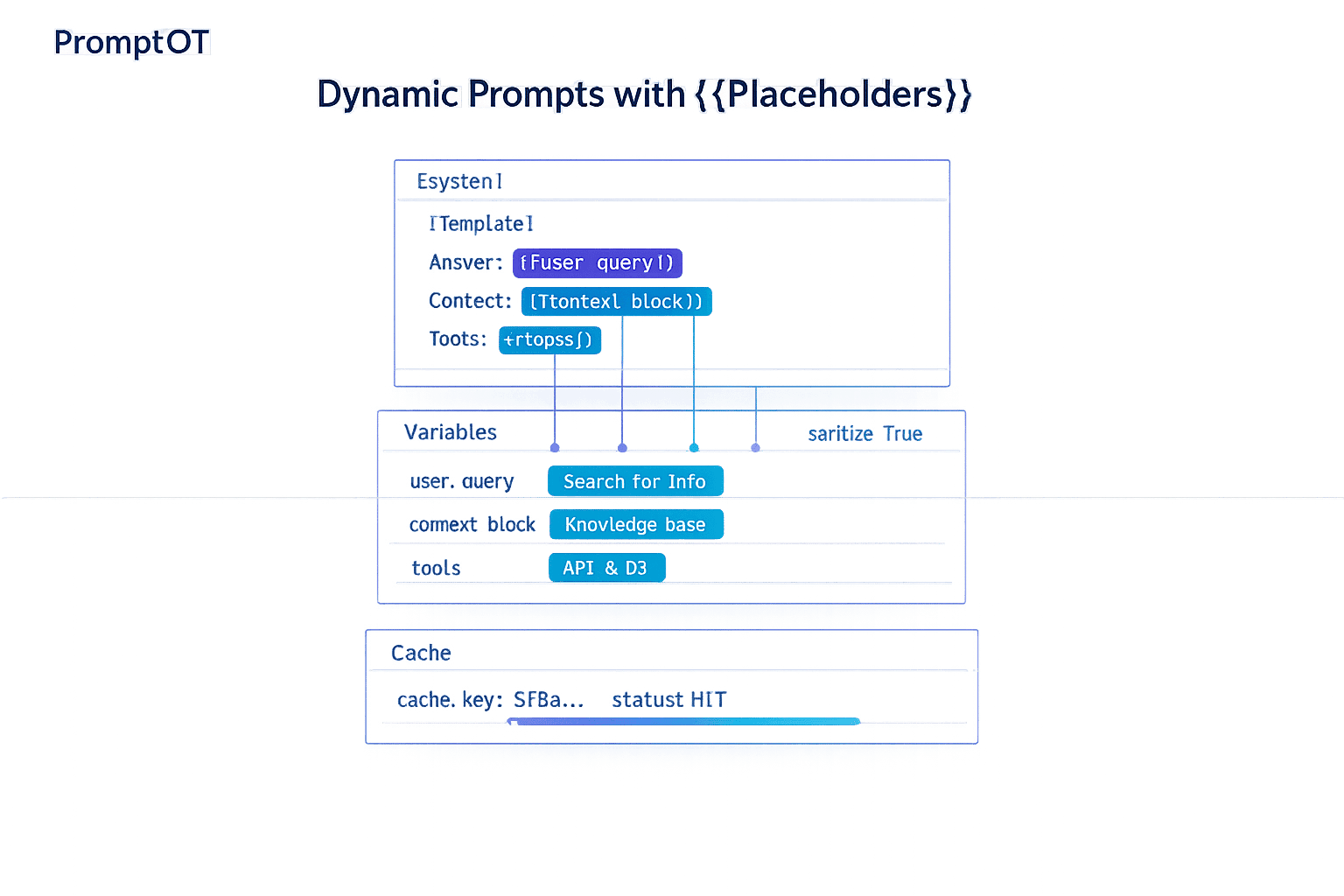
Dynamic prompts solve a common problem in working with large language models (LLMs): how to create flexible, reusable instructions without hardcoding multiple versions. Instead of static text, dynamic prompts use {{placeholders}} - variables enclosed in double curly braces - to insert specific data at runtime. This approach reduces complexity, improves efficiency, and scales easily for different users, contexts, or datasets.
Here’s how it works:
- {{Placeholders}} are dynamic variables like
{{user_name}},{{context}}, or{{current_date}}that get filled with actual values during runtime. - They can be used for tasks like personalization, retrieval-augmented generation (RAG), and chat history integration.
- Tools like PromptOT allow you to build prompts with modular blocks (e.g., Role, Context, Guardrails), making updates and testing straightforward.
- Runtime resolution ensures placeholders are replaced with the right data via API calls, producing customized prompts for various scenarios.
- Best practices include sanitizing inputs, setting default values, and using prompt caching to save time and costs.
Dynamic prompts are especially useful in applications like chatbots, content generation, and agent workflows, where flexibility and scalability are key. By using placeholders, you can streamline your LLM workflows while maintaining consistency and reducing manual effort.
Prompt Templating and Techniques in LangChain
sbb-itb-b6d32c9
What Are {{Placeholders}} in PromptOT?
Common Placeholder Types and Use Cases in Dynamic Prompts
Let’s take a closer look at how placeholders work and the variety of tasks they can support. {{Placeholders}} are dynamic variables embedded in prompt templates, marked by double curly braces (e.g., {{user_name}}, {{context}}). These placeholders are filled with data when the prompt runs.
In PromptOT, you can insert placeholders into any typed block - whether it’s Role, Context, Instructions, or Guardrails. This flexibility allows you to inject user data, retrieved documents, or system-generated information. When your application makes an API call, PromptOT performs prompt compilation. This process assembles the structured blocks and substitutes the placeholders with the actual values you’ve provided, creating the final prompt sent to the language model. Now, let’s explore how placeholders act as dynamic variables and their practical uses.
{{Placeholders}} as Dynamic Variables
Placeholders make a single prompt structure adaptable to different scenarios, users, or datasets. Instead of creating multiple static prompts, you can use one template with placeholders like {{city}} and {{customer_name}}. These placeholders are resolved when the prompt executes.
This runtime resolution happens through an API call or SDK, ensuring the prompt adapts to the context. For instance, placeholders can be used to create personalized emails or deliver real-time support responses, tailoring the output to the specific user or situation.
Common {{Placeholder}} Types and Use Cases
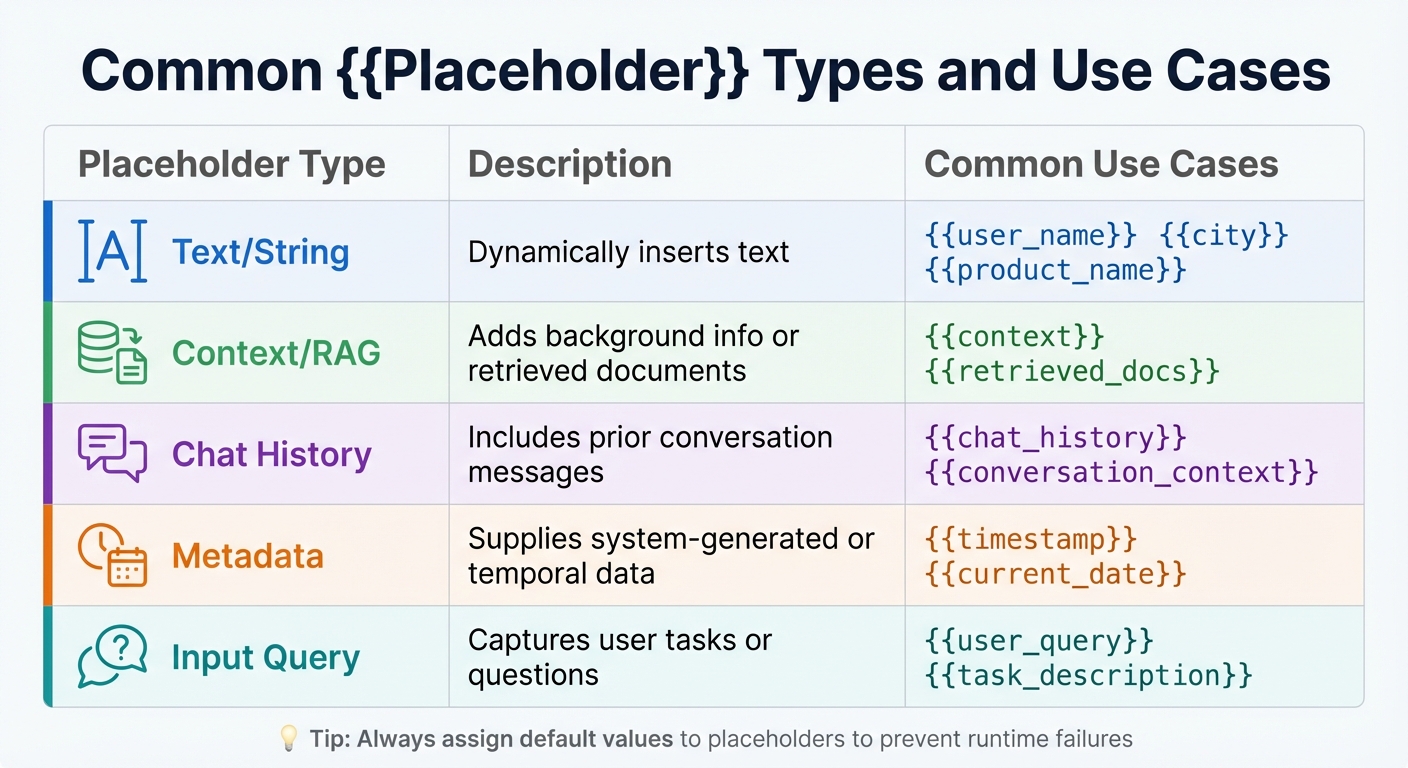
Placeholders come in several types, each suited for different tasks in language model workflows:
- Text/String placeholders: Handle simple text insertion, such as
{{user_name}},{{city}}, or{{product_name}}. - Context placeholders: Include elements like
{{context}}or{{retrieved_docs}}, which are especially useful in Retrieval-Augmented Generation (RAG) to add background information or knowledge base snippets. - Chat history placeholders: Use
{{chat_history}}to include prior conversation messages, ensuring a smooth and coherent dialogue flow. - Metadata placeholders: Provide system-generated or time-related data, such as
{{timestamp}}or{{current_date}}. - Input query placeholders: Capture user-specific tasks or questions, like
{{user_query}}or{{task_description}}.
| Placeholder Type | Description | Common Use Cases |
|---|---|---|
| Text/String | Dynamically inserts text. | {{user_name}}, {{city}}, {{product_name}} |
| Context/RAG | Adds background info or retrieved documents. | {{context}}, {{retrieved_docs}} |
| Chat History | Includes prior conversation messages. | {{chat_history}}, {{conversation_context}} |
| Metadata | Supplies system-generated or temporal data. | {{timestamp}}, {{current_date}} |
| Input Query | Captures user tasks or questions. | {{user_query}}, {{task_description}} |
To keep your prompts functional during testing or when certain inputs are missing, always assign default values to your placeholders. If a required placeholder doesn’t have a value at runtime, the prompt may fail to generate. With this foundation, you’re ready to learn how to add placeholders effectively in the next section.
How to Create Prompts with {{Placeholders}} in PromptOT
Now that we've introduced dynamic prompts and placeholders, let's dive into how to use them effectively in PromptOT. Prompts are built from distinct blocks - Role, Context, Instructions, Guardrails, and Output Format - and each of these supports dynamic placeholders.
Adding {{Placeholders}} to Typed Blocks
To integrate placeholders into your prompt blocks, simply type them within double curly braces. Use descriptive names like {{topic}} instead of vague ones like {{var1}}. This ensures clarity and guarantees the placeholder name matches the variable passed via the API.
Each block type uses placeholders differently. For instance:
- A Role block might say, "You are a
{{expertise_level}}assistant." - A Guardrails block could include, "Do not mention
{{restricted_topics}}."
You can also enable or disable specific blocks to test how they influence the output. Once placeholders are in place, the next step is arranging these blocks for the best results.
Arranging Blocks with Drag-and-Drop
PromptOT’s drag-and-drop interface allows you to reorder blocks easily. The sequence of blocks can significantly affect the model's performance. For example, placing critical guardrails at the beginning or end of a prompt can lead to noticeably different results.
Reordering blocks is a powerful way to fine-tune your prompt. You can experiment with positioning dynamic placeholders alongside static instructions to improve responses. Since blocks are modular, different team members can take ownership of specific sections. For example:
- A security reviewer could manage the Guardrails block.
- A domain expert might focus on the Context block.
This collaborative approach ensures the overall structure remains intact while optimizing individual components. Adjusting the block order not only improves output quality but also strengthens the prompt's ability to adapt dynamically.
How {{Placeholders}} Are Resolved at Runtime
Once your prompt is ready, the next step is runtime resolution. This is when prompt compilation happens - assembling all the individual blocks into a single string and replacing every {{placeholder}} with actual data.
Passing Variables Through the API
To pass data to your prompt, use the variables parameter in the API call, providing key-value pairs. For example, if your prompt includes {{customer_name}} and {{city}}, your call would look like this: {"customer_name": "Jane Doe", "city": "San Francisco"}. It's crucial that the variable keys match the placeholder names exactly.
PromptOT allows for more than just text strings. You can pass different data types, such as input_image or input_file, using a file_id. For chat-based workflows, message placeholders like {{chat_history}} let you inject entire conversation histories instead of single strings. The API then returns both the original template and the compiledPrompt, which is the fully assembled string ready to send to your LLM provider - whether that's OpenAI, Anthropic, Google, or others.
Before sending, make sure to validate and sanitize all variables to maintain the quality of your prompt.
Best Practices for Placeholder Values
Sanitize user-provided text before inserting it into placeholders to avoid risks like prompt injection. During development, log the final compiled prompt string to identify any interpolation issues and confirm that formatting is correct. Set maximum token limits for input variables to ensure dynamic data stays within your model's context window, which can range from 8,000 to 200,000 tokens depending on the provider.
To help the LLM differentiate between instructions and placeholder-resolved data, wrap dynamic content in XML tags or Markdown headers. For instance, enclosing content in <context>{{user_data}}</context> can provide clarity and structure.
Ensure your application supplies all required variables defined in the template. Missing variables can lead to runtime errors or cause unfilled {{placeholders}} to be sent to the LLM. For optional placeholders, make sure the surrounding text remains grammatically correct, even if the variable resolves to an empty string.
Here’s a tip: place static content and placeholders that rarely change at the start of your prompt. This can take advantage of prompt caching, which reduces latency by up to 80% and cuts costs by as much as 75%.
Using Dynamic Prompts in LLM Workflows
Dynamic prompts take the concept of runtime variable resolution further, making them a powerful tool across various LLM workflows.
Delivering Compiled Prompts via API
PromptOT simplifies the integration of dynamic templates into your application by offering compiled prompts through a single API endpoint. When you call the API, you provide the prompt name or ID along with the necessary variables. The platform then returns both the original template and a fully compiled string with all {{placeholders}} replaced by the provided values.
The system is LLM-agnostic, meaning the compiled prompts can be used with any provider, including OpenAI, Anthropic, and Google. You can also use release labels like "production" or "staging" to select specific prompt versions. This setup allows prompt updates to happen independently of code deployments. Teams can refine prompts directly in the PromptOT interface, and those updates take effect immediately - no need for a new app release.
For stability, it’s best to stick with provider-agnostic data structures rather than relying on provider-specific arguments, which might change as APIs evolve. Additionally, the API tracks metadata such as the model used and user ID, enabling detailed performance logging.
These features collectively support a wide range of practical LLM applications.
Real Application Examples
Dynamic prompts, delivered via the streamlined API, play a key role in various LLM workflows. Here’s how they work in some common scenarios:
- Chatbots: Placeholders like
{{chat_history}}insert full conversation histories into prompts, ensuring context is preserved across multiple interactions. - Content Generation: Variables such as
{{audience}}or{{criticLevel}}let a single template adapt tone and detail to match the target audience. - Retrieval-Augmented Generation (RAG): Placeholders like
{{context}}or{{retrieved_documents}}dynamically add external knowledge, enabling tools like documentation assistants to provide accurate and current answers. - Agentic Workflows: Variables such as
{{goal}},{{capabilities}}, and{{task}}allow developers to redefine an agent’s objectives and tools on the fly, creating systems that adapt to shifting requirements.
"Input variables make your prompts dynamic by creating placeholders that get replaced with actual values when the prompt is used." - PromptLayer
Advanced templating features, such as conditional logic, loops, and variable-length lists, further expand the possibilities. These tools allow developers to handle complex data like product catalogs, customer records, or step-by-step instructions without hardcoding every variation.
Conclusion
In the ever-changing world of LLM workflows, dynamic prompts have become a game-changer. Tools like {{Placeholders}} transform static prompts into adaptable templates, eliminating the need for constant rewrites. By swapping out hardcoded values for dynamic variables, teams can ensure consistency while scaling personalized content creation - whether it’s for customer support, financial reports, or other large-scale operations.
PromptOT takes this a step further with its block-based composition and intuitive drag-and-drop interface. It simplifies updates and ensures version control is seamless and safe. During runtime, variables are effortlessly inserted into preconfigured blocks, producing a complete, ready-to-use prompt that works with any LLM provider, including OpenAI, Anthropic, and Google.
As Latitude explains:
"Variables in PromptL allow you to store and reuse dynamic values across your prompt. They make your prompts more maintainable and adaptable by eliminating repetitive text." - Latitude
The benefits of structured prompt management are clear. Moving from manual, ad-hoc prompt writing to an organized system can significantly improve efficiency. Research shows this approach can increase developer productivity by 55% and reduce team miscommunication by 30%. With 75% of enterprises predicted to adopt generative AI by 2026, runtime variable interpolation is quickly becoming a must-have for organizations focused on collaboration, governance, and auditability.
To get started, identify elements that frequently change - like dates, names, or topics - and replace them with placeholders such as {{customer_name}}. Use default values to keep prompts functional when optional inputs are missing, and test updates safely by applying environment-scoped API keys. This method doesn’t just streamline prompt management; it equips teams to scale AI applications with confidence and efficiency.
FAQs
What happens if a {{placeholder}} is missing at runtime?
If a {{placeholder}} is missing at runtime, it can prevent the prompt from resolving correctly. This often leads to incomplete or inaccurate responses, which can disrupt your workflow and cause errors during the execution of the prompt.
How should I format {{context}} or {{retrieved_docs}} to avoid prompt injection?
To ensure safety against prompt injection, it's crucial to handle placeholders like {{context}} or {{retrieved_docs}} as data inputs rather than executable instructions. Here are some key practices to follow:
- Encode or escape inputs: Neutralize any potentially harmful code by encoding or escaping it before processing.
- Validate all inputs: Check that the data matches the expected formats and reject anything suspicious or out of scope.
- Use structured prompts: Incorporate guardrails or tags to clearly separate instructions from data, preserving the integrity and security of the system.
By implementing these steps, you can significantly reduce vulnerabilities and maintain a secure environment.
How can I use prompt caching when some variables change every request?
When working with prompt caching and dynamic variables, the key is leveraging prefix matching along with the prompt_cache_key parameter. Here's how it works: design your prompt so that the static elements create a consistent prefix, while the variable segments come afterward. This setup ensures that requests with the same prefix can share a unique cache key. During runtime, you only need to interpolate the variable sections, enabling the cached prefix to be reused effectively. This approach helps cut down on both latency and costs.